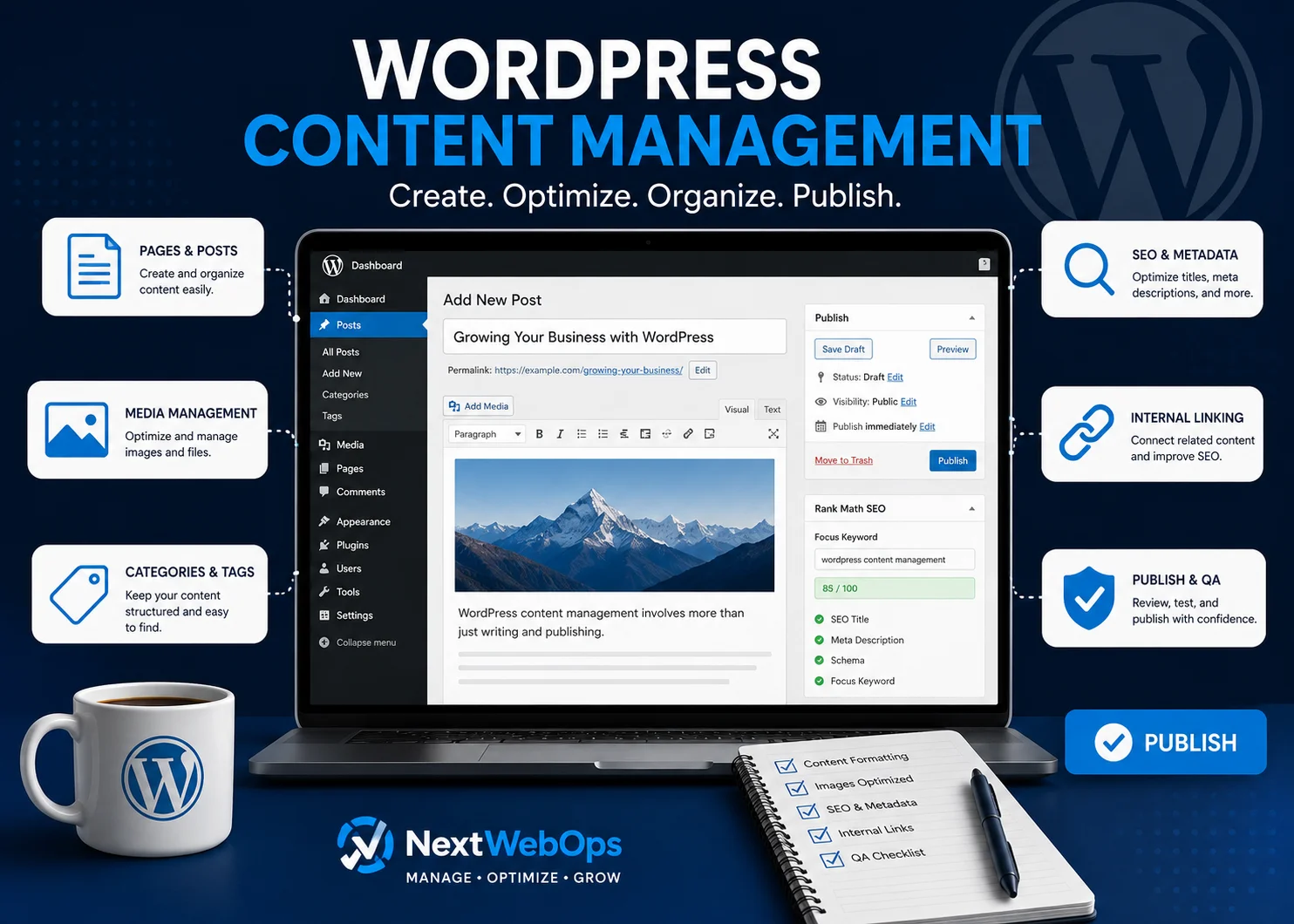
WordPress content management is more than adding text to a website and clicking Publish. For businesses, agencies, and marketing teams, it includes organizing content, formatting pages, managing images, adding internal links, configuring metadata, updating older content, and checking every page before it goes live.
WordPress makes it relatively easy to create and edit website content, but maintaining a consistent publishing process becomes more important as your website grows. Without clear standards, websites can quickly accumulate inconsistent formatting, oversized images, weak internal linking, outdated information, missing metadata, and publishing errors.
This guide explains what WordPress content management involves, what you can manage inside WordPress, and the practical processes businesses can use to keep their websites organized, optimized, and ready for visitors.
What Is WordPress Content Management?
WordPress content management is the ongoing process of creating, organizing, editing, optimizing, publishing, and maintaining content on a WordPress website.
That content can include:
- Blog posts
- Service pages
- Landing pages
- Images and other media
- Categories and tags
- Internal links
- SEO titles and meta descriptions
- Calls to action
- Navigation content
- Older pages that need updating
WordPress provides the content management system, but the quality of the final website still depends on the workflow used by the people managing it.
For example, two businesses can use the same WordPress setup and still produce very different results. One may follow a standardized process for formatting, image optimization, SEO, internal links, and publishing QA. Another may simply paste content into WordPress and publish it without reviewing the page.
The technology is the same. The content management process is not.
WordPress.com vs. WordPress.org
WordPress.com and WordPress.org both use WordPress, but they are different approaches to running a website.
WordPress.com provides a hosted service with various plans and built-in website management features. WordPress.org provides the open-source WordPress software that can be installed with a hosting provider.
For content teams, many of the day-to-day publishing concepts are similar: creating posts and pages, uploading images, organizing content, editing text, managing users, and publishing updates.
What Can You Manage in WordPress?
A WordPress website usually contains many different types of content. Good content management means handling each type consistently instead of treating publishing as a simple copy-and-paste task.
Posts and Pages
Posts are commonly used for blog articles, news, updates, and other chronological content. Pages are generally used for more permanent content such as service pages, About pages, landing pages, and contact information.
Businesses should define when each content type should be used. A consistent structure makes the site easier to maintain and reduces confusion for future editors.
Images and Media
Images can improve a page, but poorly managed media can create unnecessary problems.
Before uploading an image to WordPress, it is usually better to resize and compress it first. Descriptive filenames and appropriate alt text can also make the media library easier to manage while supporting accessibility and image SEO.
For a deeper look at this process, see the NextWebOps guide to image SEO best practices.
Categories and Tags
Categories and tags help organize WordPress content, especially on larger blogs.
The problem is that teams often create new categories or tags without checking what already exists. Over time, this can lead to duplicate, overlapping, or nearly empty archive pages.
A controlled taxonomy is easier for users, editors, and search engines to understand.
Internal Links
Internal links connect related pages on the same website. They help visitors discover additional information and help search engines understand relationships between pages.
Internal linking should be part of the publishing workflow rather than something added randomly months later.
Use descriptive anchor text and link only where another page genuinely helps the reader. The NextWebOps guide to internal linking best practices explains how to approach this more systematically.
Metadata and SEO Settings
Depending on the SEO plugin and website setup, content editors may also manage:
- SEO titles
- Meta descriptions
- Canonical URLs
- Social sharing metadata
- Schema settings
- Indexing controls
These fields should be checked before publishing because they influence how pages can appear in search results and how search engines interpret them.
10 WordPress Content Management Best Practices
A reliable WordPress content management process helps reduce publishing mistakes and keeps the website consistent as more content is added.
1. Create a Consistent Publishing Workflow
Do not rely on every editor remembering every task.
Define a publishing workflow that can be followed each time new content is added. A typical process may include:
- Receive or approve the content.
- Create the WordPress draft.
- Apply the correct heading structure.
- Format paragraphs, lists, tables, and other elements.
- Prepare and upload images.
- Add relevant internal links.
- Configure metadata.
- Preview the page.
- Complete publishing QA.
- Publish or schedule the content.
A documented process becomes especially useful when several writers, editors, SEO specialists, or external partners work on the same site.
2. Format Content for Readability
Good content can become difficult to read when it is poorly formatted.
Large blocks of text, inconsistent headings, excessive bolding, and irregular spacing make pages harder to scan.
A practical formatting standard should cover:
- Short paragraphs
- Logical H2 and H3 headings
- Bulleted or numbered lists when useful
- Consistent bold text
- Appropriate tables
- Clear calls to action
- Consistent spacing
The goal is not to decorate the article. The goal is to make the content easier to understand.
3. Optimize Every Page Before Publishing
Content publishing and on-page SEO should not be treated as completely separate jobs.
Before a page goes live, review elements such as:
- Page title
- URL
- SEO title
- Meta description
- Heading hierarchy
- Keyword usage
- Internal links
- Image alt text
- Relevant schema settings
A practical on-page SEO checklist can help teams avoid missing important elements during routine publishing.
4. Optimize Images Before Uploading
Uploading large original image files directly from a camera, stock library, or design tool can unnecessarily increase page weight.
Prepare images before they enter the WordPress media library.
A simple process includes:
- Resize images to appropriate display dimensions.
- Compress them.
- Use an efficient format such as WebP when suitable.
- Rename files descriptively.
- Add useful alt text.
- Check how images display on the finished page.
Image optimization is one of the easiest publishing tasks to standardize because the same process can be followed on every new page.
5. Add Relevant Internal Links
Every new article creates opportunities to connect related content.
Before publishing, look for pages that can provide additional context to the reader. Also consider whether older articles should later be updated to link back to the new page.
A good internal link should feel like a natural next step rather than an SEO insertion.
6. Maintain Consistent Categories and Tags
Do not create a new WordPress category every time a new variation of a topic appears.
Before adding a taxonomy term, check whether an appropriate category or tag already exists.
Businesses should periodically review their taxonomy and remove unnecessary complexity where appropriate. A smaller, deliberate structure is often easier to maintain than dozens of overlapping labels.
7. Use WordPress User Roles Properly
Not everyone who works on website content needs full administrative access.
WordPress includes different user roles that can provide varying levels of permission. Depending on the site’s workflow, writers may only need content-level access while technical administrators retain broader control.
Using appropriate permissions can make editorial workflows easier to manage and reduce unnecessary access.
8. Perform Publishing QA
Publishing QA is the final review between “the content is entered” and “the page is ready for visitors.”
This step can catch problems that are easy to miss while editing.
Check items such as:
- Heading order
- Broken links
- Missing images
- Incorrect image sizes
- Missing alt text
- Spacing problems
- Buttons and calls to action
- Metadata
- Desktop display
- Mobile display
- Published URL
The NextWebOps WordPress publishing checklist provides a more detailed publishing review process.
9. Update Existing Content Regularly
WordPress content management does not stop when a page is published.
Older articles may eventually contain:
- Outdated information
- Old screenshots
- Broken external links
- Weak internal linking
- Old calls to action
- Incomplete information
- References to services or products that have changed
Periodic content reviews help keep the site useful instead of allowing old pages to slowly lose accuracy.
If content refreshing is part of your SEO strategy, see the guide on how to update old blog posts for SEO.
10. Document Your Content Standards
A website becomes harder to manage when publishing knowledge exists only in one person’s head.
Create basic documentation covering your preferred:
- Heading structure
- Image dimensions
- Image naming conventions
- Alt text approach
- Internal linking process
- Category usage
- SEO fields
- CTA placement
- QA checklist
- Publishing approval process
This is especially useful when content production grows or work is shared between internal and external teams.
A Simple WordPress Content Management Workflow
A practical content workflow does not need to be complicated. It simply needs to make the important publishing steps repeatable.
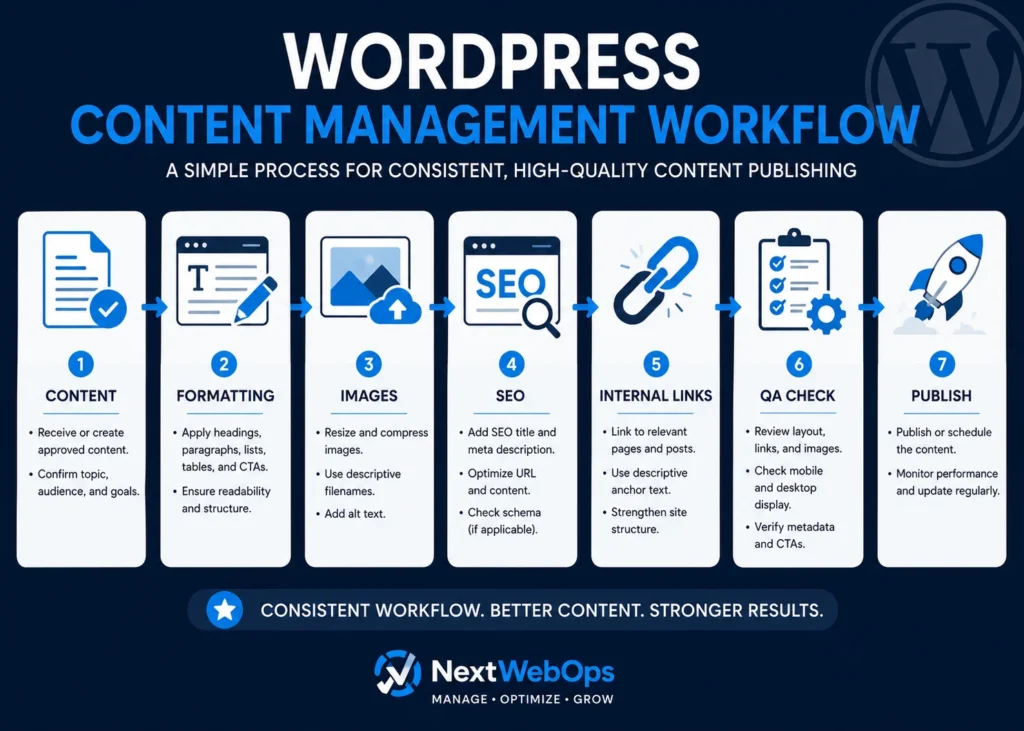
Step 1: Receive Approved Content
Start with a final or clearly identified draft. Publishing unfinished or unapproved versions can create unnecessary rework.
Step 2: Create the WordPress Draft
Add the content to the correct post or page type and confirm the intended URL, author, category, and other relevant settings.
Step 3: Apply Formatting
Format headings, paragraphs, lists, tables, quotations, calls to action, and other content elements according to the site’s standards.
Step 4: Prepare Images
Resize, compress, rename, and upload images. Add appropriate alt text and verify that each image appears in the correct location.
Step 5: Add Internal Links
Connect the new page to useful related resources on the website.
Step 6: Configure SEO Metadata
Add the SEO title, meta description, focus keyword if your workflow uses one, and other relevant plugin settings.
Step 7: Preview the Page
Do not evaluate the article only inside the editor. Preview the actual page and look at how the content appears to visitors.
Step 8: Complete Publishing QA
Check layout, links, images, headings, metadata, calls to action, and responsive presentation.
Step 9: Publish or Schedule
Once the page passes review, publish it immediately or schedule it for the appropriate date.
Step 10: Maintain the Content
Revisit important pages periodically to make sure they remain useful and accurate.
WordPress Content Management vs. Website Maintenance
WordPress content management and website maintenance overlap, but they are not exactly the same.
WordPress content management typically focuses on the information visitors see and interact with, such as:
- Publishing pages and posts
- Formatting content
- Updating text
- Managing images
- Adding internal links
- Managing categories and tags
- Updating metadata
- Performing publishing QA
Website maintenance often includes broader technical tasks such as:
- Updating WordPress
- Updating themes and plugins
- Managing backups
- Monitoring security
- Troubleshooting technical problems
- Reviewing site performance
Some businesses combine these responsibilities under one website management process. Others assign them to different people or service providers.
The important point is to make sure both areas have clear ownership.
Common WordPress Content Management Problems
Many content problems do not come from WordPress itself. They come from inconsistent publishing processes.
Inconsistent Formatting
One article uses short paragraphs while another contains large text blocks. One editor uses H2s correctly while another uses bold text instead of headings.
Without standards, the site begins to look inconsistent.
Missing Metadata
Pages may be published without reviewing SEO titles, meta descriptions, or social settings.
This is especially common when publishing responsibilities are separated from SEO responsibilities without a clear handoff.
Oversized Images
Large image files can enter the media library when contributors upload files without resizing or compression.
Weak Internal Linking
New content may be published as an isolated page instead of being connected to related resources.
Outdated Content
Teams often focus on publishing new articles while older content remains untouched for years.
Duplicate Categories and Tags
Multiple editors may create similar taxonomy terms because no one checks the existing structure first.
Incorrect Heading Structure
Headings may be selected because of their visual size rather than their structural meaning.
Publishing Without QA
Typos, broken links, missing images, layout problems, or incorrect URLs can make it to the live website when there is no final review.
Should You Manage WordPress Content In-House or Outsource It?
There is no single answer for every business.
Managing content internally can work well when publishing volume is low and someone on the team has enough time and WordPress knowledge to handle the process consistently.
An in-house workflow may be appropriate when:
- You publish only occasionally.
- Your team is comfortable using WordPress.
- Someone is responsible for SEO implementation.
- Someone reviews pages before publication.
- Website updates do not distract the team from higher-priority work.
Outsourcing becomes more useful when content production grows or publishing starts taking significant time away from writers, marketers, or business owners.
It can make sense to outsource WordPress content management when:
- You publish frequently.
- Your marketing team has a backlog of approved content.
- Formatting varies between articles.
- Images are not consistently optimized.
- Metadata is regularly missed.
- Internal linking is inconsistent.
- Content updates are delayed.
- Publishing QA is becoming a bottleneck.
- You manage content across multiple websites.
The goal of outsourcing is not simply to transfer the task of clicking Publish. A good publishing process should reduce operational work while maintaining consistent standards across the site.
How NextWebOps Supports WordPress Content Management
NextWebOps helps businesses and agencies handle the implementation work that comes between finished content and a properly published WordPress page.
Depending on the project, that can include:
- WordPress content publishing
- Content formatting
- Image preparation and optimization
- Metadata implementation
- On-page SEO execution
- Internal linking
- Content updates
- Content migration
- Publishing QA
This type of support can be useful when writers and marketing teams want to focus on strategy and content creation without spending additional time handling repetitive website publishing tasks.
If your team has content ready but needs help getting it properly formatted, optimized, and published, contact NextWebOps to discuss your WordPress content management needs.
Frequently Asked Questions About WordPress Content Management
What is WordPress content management?
WordPress content management is the process of creating, organizing, editing, formatting, optimizing, publishing, and maintaining content on a WordPress website. It can include posts, pages, images, metadata, internal links, categories, tags, and ongoing content updates.
Is WordPress a content management system?
Yes. WordPress is a content management system that allows users to create, edit, organize, and publish website content through an administrative interface.
What is the difference between WordPress content management and website maintenance?
Content management primarily focuses on website content, including publishing, formatting, images, links, metadata, and updates. Website maintenance often includes technical tasks such as software updates, backups, security, plugin maintenance, and troubleshooting.
What should a WordPress publishing workflow include?
A practical workflow should include content preparation, formatting, image optimization, internal linking, metadata configuration, page previewing, publishing QA, publication, and periodic content updates.
Can WordPress content management be outsourced?
Yes. Businesses and agencies can outsource tasks such as WordPress publishing, formatting, image optimization, metadata implementation, internal linking, content migration, updates, and publishing QA when they do not want internal marketing teams handling those tasks manually.
Build a More Consistent WordPress Publishing Process
Effective WordPress content management is less about knowing where the Publish button is and more about creating a repeatable process around everything that happens before and after publication.
Formatting, images, metadata, internal links, content organization, updates, and QA all affect the quality of the finished website.
Businesses that document these processes can publish more consistently, reduce avoidable mistakes, and make it easier for multiple people to contribute to the same website.
And when maintaining that workflow becomes too time-consuming internally, WordPress content management can be delegated so writers and marketers can spend more of their time creating and improving content rather than implementing it.
Leave a Reply