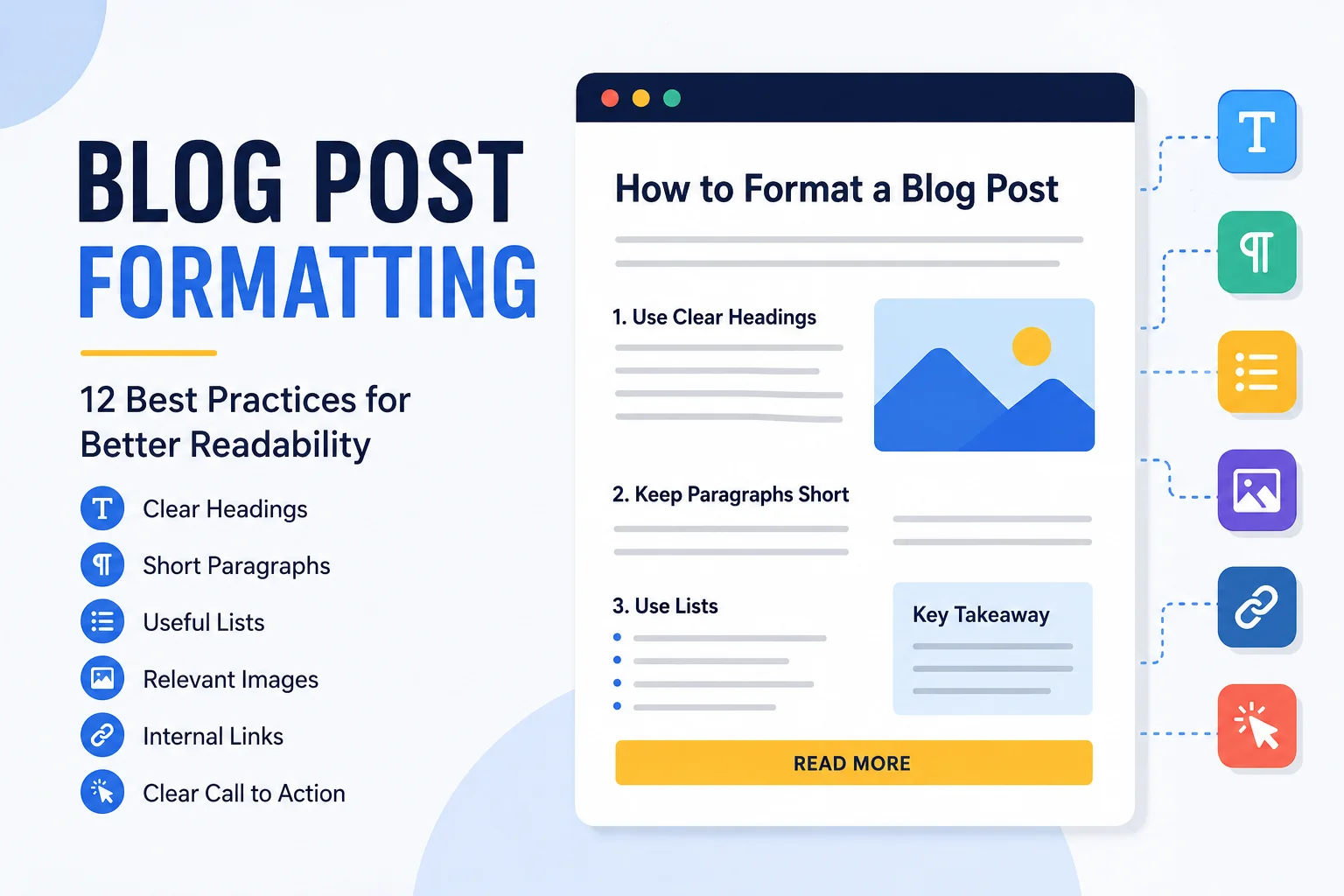
Blog post formatting is the process of structuring and presenting an article so readers can quickly understand it, scan important sections, and move through the content without unnecessary friction.
A strong draft can still perform poorly if it is published as a wall of text. Clear headings, short paragraphs, useful lists, relevant visuals, internal links, and consistent spacing all make a blog post easier to read and easier to navigate.
Good formatting also makes content publishing more consistent. Instead of treating each article differently, your team can follow a repeatable structure that works across WordPress, Shopify, Webflow, or another CMS.
This guide explains 12 blog post formatting best practices you can use to turn a written draft into a clean, readable, publish-ready article.
What Is Blog Post Formatting?
Blog post formatting is the way written content is organized and displayed on a webpage.
It includes elements such as:
- Post title
- Introduction
- Heading hierarchy
- Paragraph length
- Bullet and numbered lists
- Bold text
- Images
- Internal and external links
- Tables
- Calls to action
- Spacing and visual flow
Formatting is different from writing. Writing focuses on what the article says. Formatting focuses on how that information is presented after the draft exists.
That distinction matters because many content teams finish the writing but still need someone to handle the implementation before the post is ready to publish.
Why Blog Post Formatting Matters
Blog post formatting matters because online readers rarely consume long articles exactly the same way they would read a printed document.
They scan headings, jump between sections, look for examples, and use visual cues to decide what deserves attention.
It Improves Readability
Shorter paragraphs, clear headings, and logical spacing reduce the effort required to understand the content.
It Makes Content Easier to Scan
Headings, lists, bold text, and visuals help readers find the information they need without reading every sentence from beginning to end.
It Helps Organize Information
A proper heading structure shows which ideas are major sections and which are supporting details.
It Supports Better Publishing Consistency
If every article follows a repeatable structure, your website feels more professional and your publishing team spends less time fixing inconsistent layouts.
It Supports On-Page SEO Implementation
Formatting alone is not an SEO shortcut, but it supports elements that matter during implementation, including heading structure, internal links, images, and page organization.
That is why formatting should work alongside a broader on-page SEO checklist.
Blog Post Formatting: 12 Best Practices
1. Start With a Clear Blog Post Title
The title should tell readers what the article is about before they start reading.
A vague title creates unnecessary uncertainty.
Weak:
Some Thoughts About Better Content
Better:
Blog Post Formatting: 12 Best Practices for Better Readability
The second title is specific, relevant, and immediately communicates the topic.
In WordPress, the post title usually serves as the H1, so there is normally no need to place another H1 inside the article body.
2. Write a Short, Useful Introduction
The introduction should explain what the article covers and why the reader should continue.
Avoid long generic openings that delay the answer.
A practical introduction usually does three things:
- Introduces the problem
- Explains what the article will cover
- Shows the reader what they will gain
For example, a blog post formatting article should quickly explain that formatting improves readability, scanning, and publishing consistency.
3. Use a Logical Heading Hierarchy
A logical heading structure is one of the most important parts of blog post formatting.
A simple hierarchy looks like this:
- H1: Post title
- H2: Main section
- H3: Supporting subsection
For example:
<h2>Blog Post Formatting Best Practices</h2>
<h3>Keep Paragraphs Short</h3>
Do not use bold text as a substitute for headings.
A heading is structural. Bold text is only visual emphasis.
W3C guidance also recommends organizing headings logically so page structure is easier to understand. You can review the official W3C guidance on page headings.
4. Keep Paragraphs Short and Readable
Long blocks of text are harder to scan on a screen.
For many blog posts, paragraphs of around two to four sentences create useful white space. However, this should not become a rigid rule.
Some ideas need one sentence. Others need a few more.
The goal is readability.
If a paragraph becomes visually heavy, ask whether it contains more than one idea and whether it should be split.
5. Use Bullet and Numbered Lists When They Help
Lists are useful when several items belong together.
Use bullet lists for:
- Features
- Benefits
- Checks
- Examples
- Options
Use numbered lists when order matters, such as:
- Prepare the draft
- Add headings
- Format paragraphs
- Add images
- Insert links
- Preview the page
- Publish
Do not convert every section into a list simply because lists are easy to scan. Use them when they genuinely improve the presentation.
6. Use Bold Text Selectively
Bold text can help draw attention to an important phrase, warning, definition, or takeaway.
But if every second sentence is bold, nothing feels important anymore.
Use <strong> for meaningful emphasis, not decoration.
Avoid bolding every keyword or entire paragraphs.
7. Add Relevant Images
Images can improve understanding when they explain something the text alone does not communicate as efficiently.
Useful blog visuals include:
- Screenshots
- Before-and-after examples
- Diagrams
- Charts
- Process illustrations
- Annotated examples
Do not add images only to create visual breaks.
An unrelated stock photo may make the page look busier without helping the reader.
When adding images, also consider filenames, alt text, dimensions, compression, and placement. The NextWebOps image SEO guide covers those implementation details in more depth.
8. Place Images Near the Content They Support
Image placement is part of blog post formatting.
If an image explains a specific process, place it close to the paragraph or heading where that process is discussed.
For example, a visual comparing poorly formatted and well-formatted blog posts should appear inside the section explaining formatting examples rather than at the very end of the article.
This helps readers connect the visual with the explanation immediately.
9. Add Internal Links Naturally
Internal links help readers move from one useful resource to another.
For example, an article about blog formatting can naturally link to:
- Image optimization guidance
- Internal linking guidance
- Publishing checklists
- On-page SEO resources
The anchor text should clearly describe the destination.
Instead of:
click here
use something descriptive such as:
internal linking best practices
For a more detailed explanation, see the NextWebOps guide to internal linking best practices.
10. Use Tables When They Make Comparison Easier
Tables work well when readers need to compare information across several categories.
For example:
| Formatting Element | Poor Use | Better Use |
|---|---|---|
| Headings | Random bold text | Logical H2 and H3 structure |
| Paragraphs | Large walls of text | Short focused paragraphs |
| Images | Unrelated stock photos | Relevant screenshots or diagrams |
| Lists | Used everywhere | Used when grouping information helps |
Do not force information into a table if normal paragraphs are easier to understand, especially on mobile screens.
11. Use a Clear Call to Action
A blog post should usually give the reader a logical next step.
That next step depends on the page.
Examples include:
- Read a related guide
- Download a resource
- Review a checklist
- Contact the business
- Compare services
A CTA should feel like a natural continuation of the article, not an unrelated advertisement inserted at the end.
12. Review the Published Page Before You Finish
The final formatting check should happen on the actual published or previewed page.
Review:
- Heading hierarchy
- Paragraph spacing
- List indentation
- Image alignment
- Image size
- Internal links
- External links
- Tables
- CTA placement
- Mobile display
This is an important part of publishing QA.
A draft can look perfect in a document editor but still have spacing, image, or link problems once it is implemented in WordPress.
Recommended Blog Post Formatting Structure
A consistent blog post structure makes content easier to publish and easier for readers to follow.
A useful template is:
- Post title
- Short introduction
- Main H2 sections
- H3 subsections where needed
- Lists for grouped information
- Supporting visuals
- Internal links
- Optional tables
- Call to action
- FAQs if useful
- Final publishing QA
This structure can be adjusted according to search intent and article type.
A short opinion post may not need every element. A detailed SEO guide may need most of them.
Blog Post Formatting Example: Poor vs. Improved
A simple before-and-after comparison shows how much presentation can affect readability.
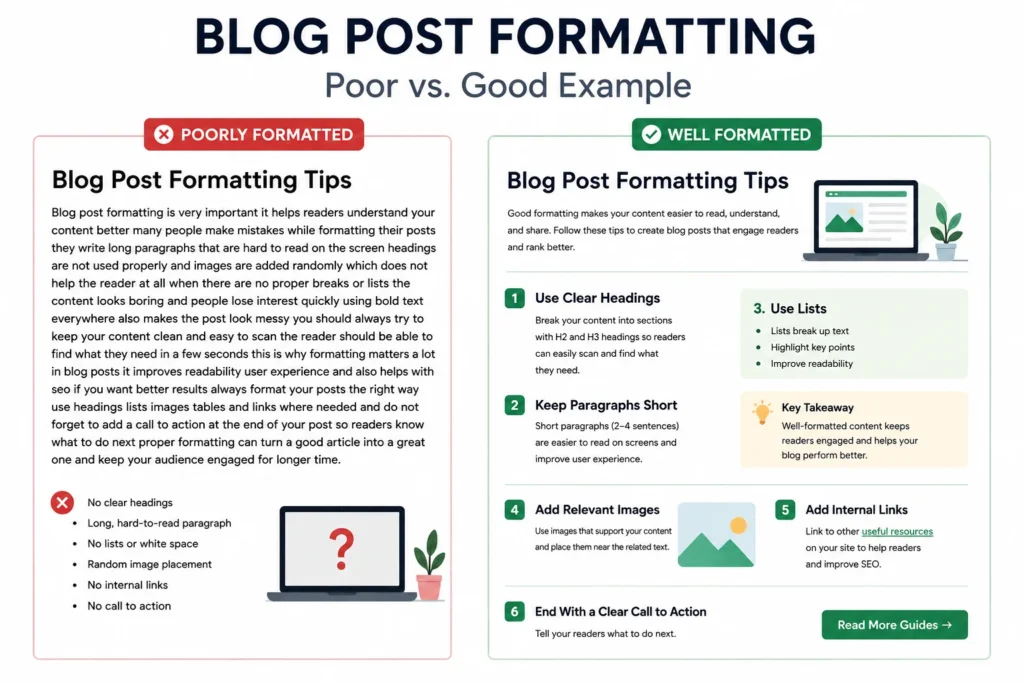
Poor Formatting
A poorly formatted article may include:
- A long introduction
- No useful headings
- Large blocks of text
- Random bold sentences
- No internal links
- Unrelated images
- No CTA
Improved Formatting
The same article can become much easier to use when it includes:
- A clear title
- A short introduction
- Logical H2 and H3 headings
- Short focused paragraphs
- Relevant lists
- Useful images
- Contextual internal links
- A clear next step
The information itself may not change much, but the reading experience improves significantly.
Blog Post Formatting in WordPress Classic Editor
WordPress Classic Editor gives you both a Visual view and a Text view.
For clean implementation, the Text view can be especially useful when you want direct control over HTML structure.
Useful tags include:
<p> for paragraphs
<h2> for main sections
<h3> for supporting subsections
<ul> and <ol> for lists
<strong> for emphasis
<a> for links
For example:
<h2>Blog Post Formatting Best Practices</h2>
<p>Keep paragraphs focused and easy to scan.</p>
<h3>Use Lists Where Helpful</h3>
<ul><li>Point one</li><li>Point two</li></ul>
Do not manually style normal paragraph text to look like a heading. Use the correct HTML element instead.
Before publishing, use a full WordPress publishing checklist to verify formatting, metadata, links, images, and other implementation details.
Common Blog Post Formatting Mistakes
Publishing Large Walls of Text
Long uninterrupted sections are difficult to scan. Break content into logical paragraphs and sections.
Using Bold Text Instead of Headings
Bold text does not create document structure. Use proper heading tags.
Skipping Heading Levels Randomly
Keep the hierarchy logical. Do not jump between heading levels simply because one looks visually better.
Adding Too Many Images
Images should support the content. More images do not automatically create a better article.
Using Irrelevant Stock Photos
Prefer visuals that explain, demonstrate, or support the topic.
Overusing Lists
Lists are useful, but an article made almost entirely of bullet points can feel fragmented.
Adding Links Without Context
Links should be relevant to the surrounding paragraph and use clear anchor text.
Using Inconsistent Spacing
Random blank lines, inconsistent image gaps, and uneven paragraph spacing make the page look unfinished.
Ignoring Mobile Formatting
A table, image, or long heading may look fine on desktop and become awkward on a smaller screen.
Publishing Without Previewing
Always review the actual page before considering the formatting complete.
Blog Post Formatting Checklist
Use this checklist before publishing:
- Is the post title clear?
- Is the introduction concise?
- Does the article use a logical H2/H3 hierarchy?
- Are paragraphs easy to scan?
- Are lists used only where helpful?
- Is bold text used selectively?
- Are images relevant?
- Do images include appropriate alt text?
- Are images placed near relevant content?
- Are internal links descriptive and useful?
- Are external references appropriate?
- Are tables readable?
- Is there a clear CTA?
- Does the page display correctly on mobile?
- Has the final published page been reviewed?
Make Blog Post Formatting Part of Your Publishing Workflow
A finished draft is not the same thing as a finished webpage.
Before publication, content may still need:
- Heading implementation
- Paragraph formatting
- Image optimization
- Alt text
- Internal links
- External sources
- Metadata
- CTA placement
- Mobile checks
- Final publishing QA
This is why blog post formatting should be built into the publishing process rather than handled as an afterthought.
If an article was developed from a content plan, the final formatting should also reflect the structure and intent established in the original SEO content brief.
NextWebOps provides hands-on content implementation and website publishing support, including formatting, metadata, image optimization, internal linking, content migration, and publishing QA across WordPress, Shopify, and Webflow.
If your content is written but still needs professional implementation, contact NextWebOps to discuss your website publishing workflow.
Frequently Asked Questions About Blog Post Formatting
What is the best format for a blog post?
A practical format usually includes a clear title, short introduction, logical H2 and H3 headings, readable paragraphs, useful lists, relevant images, internal links, and a clear CTA.
How should a blog post be structured?
Start with the title and introduction, divide the content into main H2 sections, use H3 subsections where needed, add visuals and links in relevant places, and finish with a useful next step or FAQ section.
How long should blog paragraphs be?
There is no fixed rule, but short paragraphs are usually easier to read online. Two to four sentences is a useful guideline for many sections, as long as the paragraph still communicates one clear idea.
How many headings should a blog post have?
Use as many headings as needed to organize the content clearly. Do not add headings only to increase their number.
Should blog posts include images?
Use images when they help explain, demonstrate, compare, or support the content. Avoid adding irrelevant visuals simply to break up text.
Should every blog post have a table of contents?
No. A table of contents can be helpful for long or complex guides, but shorter articles may not need one.
What is the difference between H1, H2, and H3?
H1 is typically the main page or post title. H2 headings divide the article into major sections, while H3 headings organize supporting points within those sections.
How do I format a blog post in WordPress?
Use the WordPress editor to apply proper headings, paragraphs, lists, links, and images. In Classic Editor, Text view can help you control the underlying HTML before previewing and publishing the final page.
Leave a Reply