WordPress content migration is the process of moving website content into WordPress while preserving the elements that make that content useful to visitors and search engines. That can include pages, blog posts, images, headings, internal links, metadata, downloads, calls to action, categories, and URL structure.
It is different from simply moving a WordPress installation from one hosting provider to another. A technical site migration may transfer databases, themes, plugins, and server files. Content migration focuses on making sure the information inside the website arrives in the right place, uses the right structure, and works correctly after the move.
That distinction matters when you are rebuilding a website, moving from another CMS, consolidating multiple websites, or replacing an outdated WordPress setup. A successful migration is not complete when the content appears on the new site. It is complete when that content has been reviewed, formatted, linked, optimized, and tested.
What Is WordPress Content Migration?
WordPress content migration involves transferring or rebuilding website content in WordPress while retaining the structure, assets, links, SEO information, and functionality that should survive the move.
Depending on the project, the migration may include:
- Pages and blog posts
- Page titles and heading structure
- Images and media files
- Image alt text
- Internal and external links
- Buttons and calls to action
- SEO titles and meta descriptions
- URL slugs
- Categories and tags
- Tables, lists, quotes, and embeds
- PDFs and downloadable resources
- Author and publication information
Some of this information can be transferred automatically. Other elements usually need manual review because the old site’s structure may not match the new WordPress templates.
Content Migration vs. Full WordPress Site Migration
A full WordPress migration often refers to moving an existing WordPress installation between servers, hosts, domains, or environments. That can involve transferring the database, themes, plugins, uploads, configuration files, and other technical components.
Content migration is more focused. For example, a company redesigning its website may keep WordPress but rebuild every page using a new design system. The hosting may stay exactly the same, yet the project still requires substantial content migration.
Similarly, a business moving from Webflow, Drupal, Joomla, a proprietary CMS, or a static website may need its content rebuilt inside WordPress even though there is no existing WordPress database to transfer.
This is why migration plugins solve only part of many real-world projects. Moving data is not the same as implementing the content correctly.
When Do You Need WordPress Content Migration?
Content migration is common whenever the structure, platform, or presentation of a website changes.
Moving From Another CMS to WordPress
A CMS-to-WordPress migration may involve importing structured data, manually recreating pages, or combining automated and manual methods.
The challenge is rarely just getting the text into WordPress. Different platforms use different content fields, page builders, templates, taxonomies, image systems, and URL structures. Content that looked correct in the old CMS may need to be reformatted for WordPress.
Redesigning an Existing Website
A redesign often introduces new page templates, content blocks, navigation, image dimensions, and calls to action. Existing copy may need to be moved into those new layouts page by page.
This is also a good opportunity to clean up outdated formatting, oversized images, weak internal links, and inconsistent metadata instead of carrying every old problem into the new website.
Consolidating Multiple Websites
Businesses sometimes merge multiple domains, microsites, blogs, or resource libraries into one WordPress installation.
These projects require careful decisions about which pages should be retained, combined, redirected, updated, or removed. Without a clear content map, it is easy to create duplicate pages or lose important URLs.
Reorganizing an Existing WordPress Site
Not every migration involves changing platforms. A WordPress website may need a content migration when moving from an old page builder to a new one, changing themes, creating custom post types, reorganizing categories, or replacing inconsistent page templates.
What Should Be Included in a WordPress Content Migration?
Before moving anything, define exactly what counts as content for the project. Focusing only on visible body copy is a common mistake.
A complete inventory may include:
- Page and post titles
- Body copy
- H2 and H3 headings
- Images
- Image captions and alt text
- Videos and embeds
- Tables
- Lists
- Quotes
- Buttons and calls to action
- Internal links
- External links
- Downloadable documents
- Author information
- Publication and updated dates
- Categories and tags
- SEO titles
- Meta descriptions
- URL slugs
- Canonical settings where applicable
The exact list depends on the website, but documenting these elements before migration reduces the chance of discovering missing pieces after launch.
WordPress Content Migration Process
A reliable migration should follow a repeatable workflow rather than moving pages in whatever order is convenient.
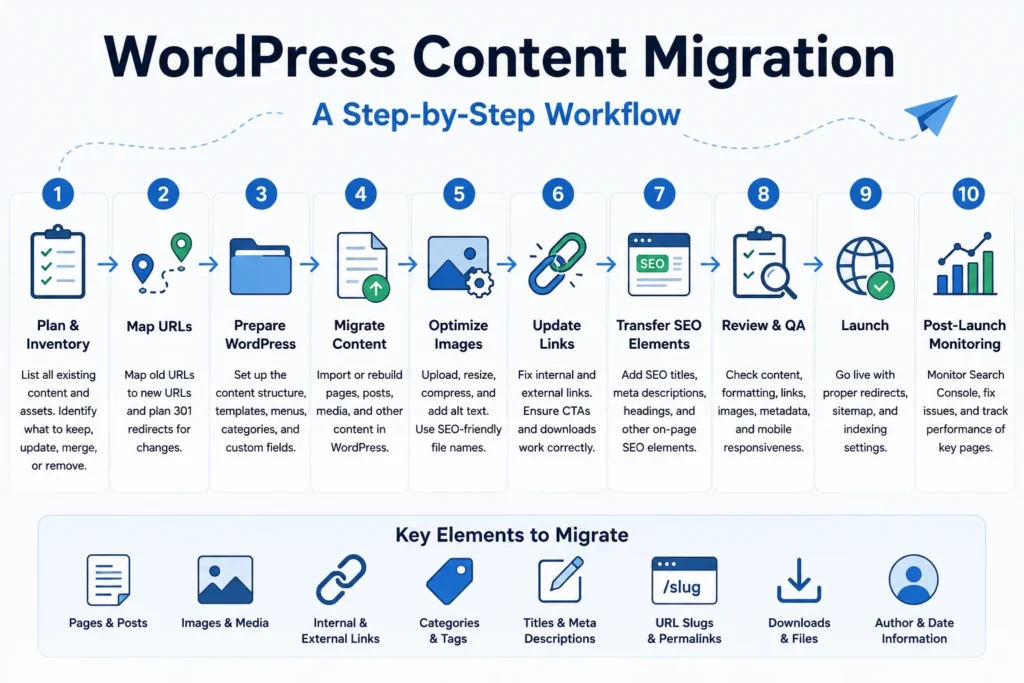
1. Create a Complete Content Inventory
Start by recording every URL that may need to move. A spreadsheet is usually the simplest way to manage this.
Useful columns include:
Old URL | New URL | Content Type | Migration Status | SEO Metadata | Images | Redirect | QA Status
The inventory gives the team one source of truth for what exists, what is moving, and what still needs review.
If analytics or Search Console data is available, identify pages that already receive organic traffic, earn backlinks, generate leads, or rank for important queries. These deserve extra attention during migration.
2. Decide What to Keep, Update, Merge, or Remove
A migration does not have to preserve every page simply because it exists.
Review the inventory and classify content into groups such as:
- Keep: still useful and accurate
- Update: valuable but outdated
- Merge: overlaps significantly with another page
- Redirect: should point to a better destination
- Remove: no longer useful and has no replacement
This prevents old, duplicate, thin, or irrelevant content from automatically becoming part of the new website.
3. Map Old URLs to New WordPress URLs
URL mapping is one of the most important SEO tasks in a migration.
For each old URL, decide whether the new website will use:
- The same URL
- A changed URL
- A consolidated destination
- No replacement
When an important URL changes, a suitable 301 redirect should generally point the old address to the closest relevant new page.
Avoid redirecting large numbers of unrelated old pages to the homepage simply because it is easy. The destination should make sense for someone who expected the original page.
4. Prepare the WordPress Content Structure
Set up the destination before migrating large volumes of content.
Confirm:
- Page hierarchy
- Blog structure
- Categories
- Tags
- Custom post types
- Templates
- Navigation structure
- Custom fields
- URL conventions
Without this preparation, teams often make inconsistent decisions during migration and then have to reorganize the website afterward.
For larger sites, clear ongoing WordPress content management standards can also help keep publishing consistent after the migration is finished.
5. Migrate and Format the Content
Now the content can be transferred or rebuilt inside WordPress.
Depending on the source platform and project size, migration may be performed with an importer, API, migration tool, spreadsheet-based workflow, manual publishing, or a combination of methods.
Whatever method is used, review the WordPress output for:
- Correct H2 and H3 hierarchy
- Consistent paragraphs and spacing
- Proper lists
- Clean tables
- Working buttons
- Correct quotes
- Accurate embeds
- Readable formatting
- Removal of unnecessary source-CMS markup
Copying content directly from another CMS can bring hidden spans, inline styles, outdated classes, or unnecessary markup into WordPress. The page may look acceptable initially but become difficult to maintain later.
Content implementation should therefore be treated as a structured publishing task, not simply copy and paste.
If you have a large batch of pages that needs to be rebuilt, formatted, linked, and reviewed, get help with your WordPress content migration.
6. Migrate and Optimize Images
Images deserve their own migration workflow.
Common migration problems include missing files, images still loading from the old domain, oversized uploads, duplicated media, poor filenames, and lost alt text.
For each important image:
- Confirm that the correct file was transferred
- Use an appropriate file size
- Resize unnecessarily large images
- Compress the file
- Use WebP where appropriate
- Retain or improve descriptive alt text
- Check that the image displays correctly on desktop and mobile
Migrations are a useful opportunity to improve old media libraries rather than simply copying every inefficient asset. See the NextWebOps guide to optimizing images for SEO for additional image optimization considerations.
7. Restore Internal and External Links
Internal links frequently break during migration because domains, URL structures, page names, or content locations change.
Review links inside the migrated content and check for:
- Old-domain URLs
- Old staging URLs
- Pages whose slugs changed
- Links to removed content
- Broken PDF or download URLs
- Incorrect CTA destinations
Migration is also a good time to improve weak linking between related pages. A stronger internal structure helps users discover relevant content and gives search engines clearer context about how pages relate to each other.
For more guidance, see these internal linking best practices.
8. Transfer Important On-Page SEO Elements
Installing an SEO plugin does not automatically preserve the optimization of the old website.
Review important SEO elements individually, including:
- SEO titles
- Meta descriptions
- URL slugs
- Heading hierarchy
- Image alt text
- Internal links
- Canonical URLs where applicable
- Indexing settings
If the page is being rewritten or significantly redesigned, do not assume the old metadata should be copied unchanged. It may be better to improve it while retaining the page’s search intent.
Before launch, it is also useful to run an on-page SEO audit across priority pages.
9. Review Every Migrated Page
A page should not be marked complete immediately after its content appears in WordPress.
Use a repeatable QA checklist for each migrated URL:
- All expected content is present
- Headings follow the correct hierarchy
- Formatting matches the intended template
- Images load correctly
- Alt text has been added where appropriate
- Internal links work
- External links work
- Buttons and forms work
- SEO metadata is present
- The correct URL is being used
- The page works on mobile
- No old-domain or staging links remain
For WordPress-specific publishing checks, use a consistent WordPress publishing checklist instead of relying on memory.
10. Perform Post-Launch Checks
Migration QA should continue after the new website goes live.
Check the live site for:
- Broken links
- Unexpected 404 errors
- Incorrect redirects
- Missing images
- Indexing problems
- Sitemap errors
- Canonical mistakes
- Pages accidentally blocked from search engines
Google Search Console can help identify indexing issues, crawl errors, and unexpected changes after launch. Priority organic landing pages should receive additional monitoring because problems on those pages can have a larger impact on traffic.
Manual vs. Automated WordPress Content Migration
Automation can make migration significantly faster, especially when a website contains hundreds or thousands of similarly structured records.
Automated migration works well when:
- The source system has a reliable export method
- WordPress has a compatible importer
- Fields can be mapped cleanly
- Content types are consistent
- Layouts require minimal transformation
Manual or assisted migration is often more appropriate when:
- The website is being redesigned
- The source markup is messy
- Pages use different layouts
- Content needs editing
- Images need optimization
- Internal links require rebuilding
- SEO metadata needs review
- The source and destination CMS structures differ substantially
The most efficient approach is often a combination: automate repetitive transfers and use human review for structure, formatting, SEO, and QA.
Automation can transfer data. It does not guarantee correctly implemented content.
Common WordPress Content Migration Mistakes
Migrating Everything Without a Content Audit
Moving outdated, duplicated, or irrelevant pages creates unnecessary work and carries old problems into the new site.
Changing URLs Without Mapping Redirects
Important pages can lose traffic and backlinks when old URLs disappear without appropriate redirects.
Copying Messy HTML Into WordPress
Source-CMS formatting can introduce unnecessary code, inline styling, and inconsistent page layouts.
Forgetting SEO Titles and Meta Descriptions
Visible content may survive while valuable SEO fields are lost during an import.
Losing Images or Alt Text
Images can remain hosted on the old domain, disappear after launch, or lose descriptive attributes during migration.
Leaving Internal Links Pointing to Old URLs
Old-domain links create avoidable redirects and may eventually become broken links.
Recreating the Wrong Heading Structure
Visual styling should not replace semantic structure. A section that looks like a heading should use the appropriate heading element rather than bold paragraph text.
Depending Entirely on Migration Plugins
Plugins are useful for moving files or structured data, but they cannot judge whether a page has the correct CTA, image, heading hierarchy, link destination, or editorial formatting.
Skipping Live-Site QA
A staging site can behave differently after launch. Redirects, caching, CDN settings, forms, links, and indexing controls should all be checked on the live domain.
WordPress Content Migration Checklist
Before Migration
- Create a complete content inventory
- Record existing URLs
- Identify important organic landing pages
- Decide what to keep, update, merge, or remove
- Create the new URL map
- Prepare redirects
- Collect media and downloadable files
- Export or record important metadata
- Confirm the new WordPress content structure
During Migration
- Move or rebuild pages and posts
- Apply the correct heading hierarchy
- Clean formatting
- Optimize images
- Add alt text
- Update internal links
- Restore external links
- Rebuild buttons and CTAs
- Add SEO titles and meta descriptions
- Track completion in the migration spreadsheet
After Migration
- Review every important page
- Test redirects
- Check for broken links
- Check images and downloadable files
- Review mobile layouts
- Confirm indexing settings
- Verify the XML sitemap
- Review Google Search Console
- Monitor priority pages after launch
When Should You Outsource WordPress Content Migration?
Small migrations may be manageable internally. The workload increases quickly, however, when a project involves dozens or hundreds of URLs.
Outsourcing can make sense when:
- An agency needs help publishing a large client website
- Hundreds of pages need to be moved
- Content is coming from another CMS
- New WordPress templates require manual formatting
- SEO metadata needs to be retained or improved
- Images need resizing and optimization
- Internal links must be updated across the site
- A strict launch deadline is approaching
- The internal marketing team needs to focus on strategy rather than repetitive implementation
- A separate QA pass is required before launch
NextWebOps supports WordPress content migration through practical implementation work such as page publishing, formatting, image optimization, metadata, internal linking, content cleanup, and publishing QA.
If the content is ready but your team needs help getting it correctly implemented in WordPress, discuss your WordPress migration project.
Final Takeaway
A successful WordPress content migration is not measured by whether the words made it into WordPress.
The migrated content should arrive complete, correctly structured, properly formatted, optimized, connected to the rest of the website, and tested on the live site.
Creating a content inventory, mapping URLs, cleaning formatting, optimizing images, rebuilding internal links, preserving important SEO elements, and completing page-by-page QA can prevent many of the problems that appear after a rushed migration.
Whether you are moving from another CMS, rebuilding an existing WordPress website, or migrating a large content library into new templates, treating migration as a controlled publishing workflow will produce a more reliable result.
Need extra implementation capacity for an upcoming migration? contact NextWebOps for WordPress content migration support.
Frequently Asked Questions
What is WordPress content migration?
WordPress content migration is the process of moving or rebuilding website content in WordPress. It can include pages, posts, images, links, metadata, headings, downloads, categories, CTAs, and other content elements that need to be preserved or recreated.
How do I migrate content to WordPress?
Start with a content inventory, decide which content should be retained, map old URLs to new destinations, prepare the WordPress structure, transfer or rebuild the content, update links and SEO elements, and perform page-by-page QA before and after launch.
Can I migrate content from another CMS to WordPress?
Yes. Content can be moved from platforms such as Webflow, Drupal, Joomla, proprietary CMSs, or static websites. Some data may be imported automatically, while layouts, formatting, links, images, and metadata often require manual review.
Does migrating a WordPress website affect SEO?
It can. SEO problems may occur when important URLs change without redirects, content is removed, metadata is lost, internal links break, pages become non-indexable, or important on-page elements are changed incorrectly. Careful planning and post-launch monitoring can reduce these risks.
Can WordPress content migration be automated?
Parts of the process can be automated when content is structured consistently and the source and destination systems support reliable import and export methods. Manual review is still important for formatting, images, SEO elements, links, calls to action, and quality assurance.
How do I migrate WordPress content without losing SEO?
Preserve important content, map old and new URLs, use appropriate redirects when URLs change, retain or improve relevant metadata, update internal links, verify indexability, submit an accurate sitemap, and monitor priority pages through Google Search Console after launch.
Leave a Reply