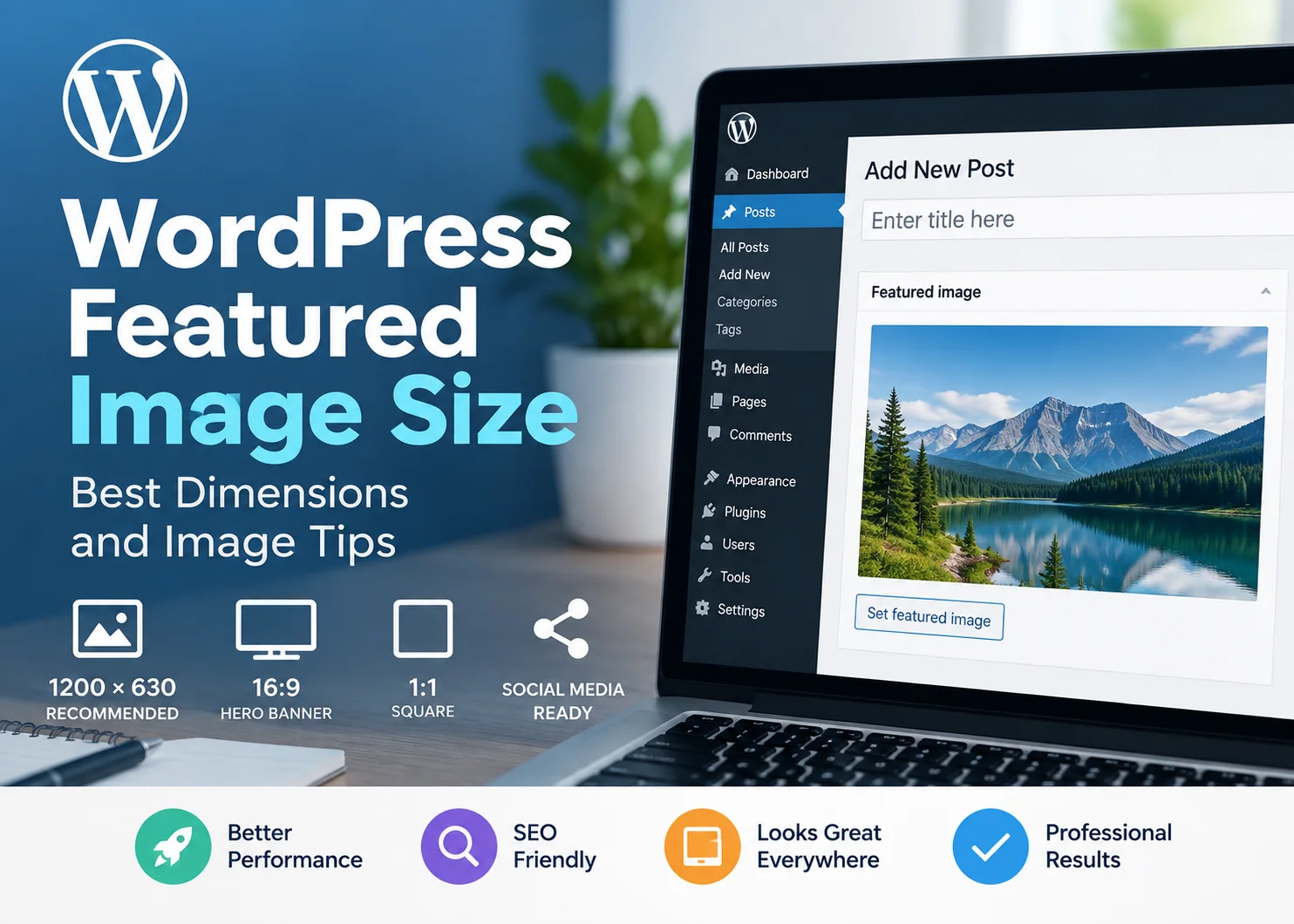
The best WordPress featured image size depends on your theme, layout, aspect ratio, and where the image appears.
A common general-purpose starting point is around 1200 × 630 pixels, but that should not be treated as a universal requirement.
The more important question is whether the image matches your theme’s expected shape, is large enough for the display area, and is optimized before upload.
A featured image can look perfect in one WordPress theme and crop badly in another, even when the exact same file is used.
This guide explains practical featured image dimensions, aspect ratios, cropping, image formats, compression, SEO, and the checks you should make before and after publishing.
What Is the Best WordPress Featured Image Size?
For many blogs, 1200 × 630 pixels is a useful starting size.
It provides a wide landscape ratio, is large enough for many article layouts, and also works well for social sharing in many cases.
WordPress.com’s WordPress image size guidance lists 1200 × 630 as a useful size for many blog images and social sharing, while also noting that larger images may be appropriate for wider layouts.
However, your theme should always come first.
If your theme expects a 16:9 hero image, a 1200 × 630 source may still crop. If it uses square cards, the same file may be cropped even more aggressively.
A better rule is:
Match your theme’s preferred aspect ratio, then provide enough source resolution for the largest expected display size.
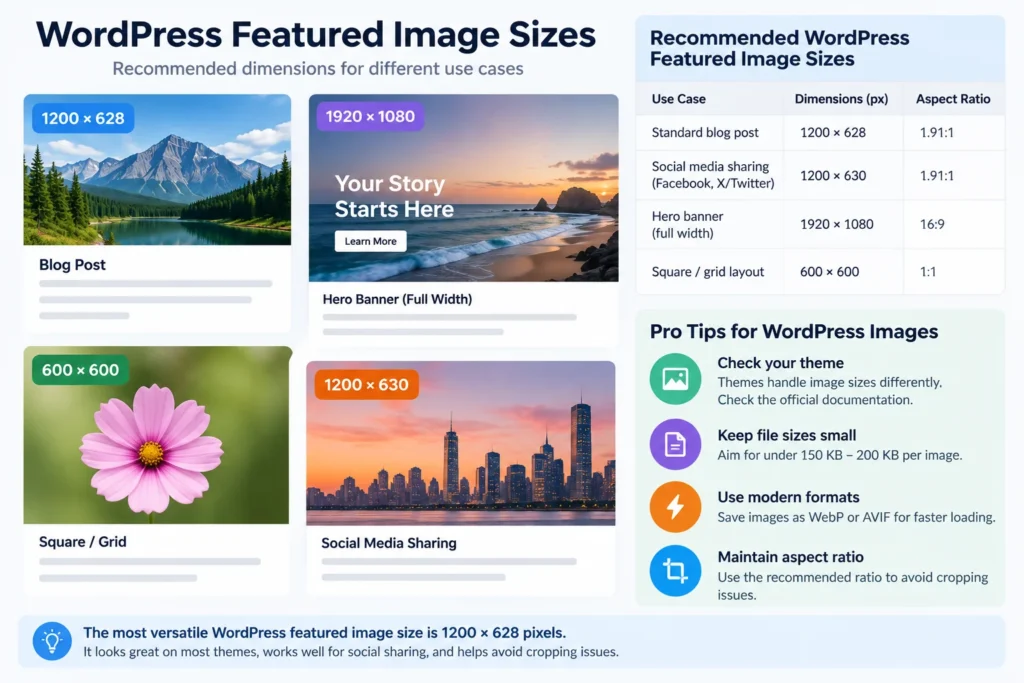
WordPress Featured Image Sizes by Use Case
| Use Case | Suggested Starting Size | Aspect Ratio |
|---|---|---|
| Standard blog featured image | 1200 × 630 px | About 1.91:1 |
| Wide hero or banner | 1600 × 900 or 1920 × 1080 px | 16:9 |
| Square blog grid | 800 × 800 px | 1:1 |
| Portrait card | Theme-dependent | Often 4:5 or similar |
| Social-share-friendly image | 1200 × 630 px | About 1.91:1 |
These are practical starting points, not WordPress rules.
Your theme, builder, and site design may use different ratios.
Why There Is No Universal WordPress Featured Image Size
WordPress itself does not force every theme to display featured images in one fixed shape.
The final appearance may be controlled by:
- theme templates
- blog archive cards
- single-post headers
- page builders
- custom CSS
- mobile breakpoints
- image cropping settings
That means two sites can upload the same 1200 × 630 image and get completely different results.
One may display the full image.
Another may crop the left and right edges.
A third may crop the top and bottom to fit a fixed-height card.
Image Dimensions vs Aspect Ratio
These two concepts are often confused.
Image Dimensions
Dimensions describe the exact pixel width and height.
Example:
1200 × 630 pixels
Aspect Ratio
Aspect ratio describes the relationship between width and height.
For example, 1200 × 630 is approximately a 1.91:1 ratio.
A 1600 × 900 image is 16:9.
Why does this matter?
Because cropping usually happens when the uploaded image and the display container use different aspect ratios.
If your theme expects 16:9 but you upload a square image, something has to give.
The image may:
- crop
- stretch
- letterbox
- display with excess empty space
In most cases, matching the expected aspect ratio is more important than choosing one exact width.
Why WordPress Featured Images Get Cropped
Featured images often get cropped because the theme forces them into a fixed container.
Common reasons include:
- hard-cropped thumbnail sizes
- fixed-height blog cards
- CSS using
object-fit: cover - different image ratios on archive and single-post pages
- mobile-specific layouts
The safest design approach is to keep important elements away from the outer edges.
This is especially important when the featured image contains:
- text
- faces
- logos
- product screenshots
- icons
Keep the main subject closer to the center so the image can survive reasonable cropping.
Why Your WordPress Featured Image Looks Too Big
If the featured image appears too large, the upload dimensions may not be the real problem.
The theme may be using:
- a full-width hero layout
- 100% image width
- a tall image container
- no maximum height
- CSS that scales the image aggressively
Uploading a smaller file may reduce sharpness without fixing the layout.
Instead, check:
- the theme’s featured image settings
- the rendered image dimensions
- the aspect ratio of the container
- the CSS or builder settings controlling height and width
Why Your Featured Image Looks Blurry
A blurry featured image usually means the browser is displaying the image larger than the source or generated version can support.
Common causes include:
- uploading a source image that is too small
- WordPress serving a smaller generated image
- the theme upscaling the image
- over-compression
- high-density displays exposing low resolution
If your featured image displays at 1200 pixels wide, do not start with a 600-pixel-wide source.
Use a source image large enough for the biggest expected display area, then let WordPress generate smaller responsive versions where appropriate.
How WordPress Image Sizes Work
When you upload an image, WordPress can generate multiple versions of that file.
Common image sizes include:
- thumbnail
- medium
- medium large
- large
- full size
- custom theme or plugin sizes
The important distinction is:
Featured image describes the role the image plays on the post.
Image size describes the generated version WordPress may serve.
Your theme may choose a generated image size instead of the original upload.
That is why an uploaded image can look different depending on where it appears.
Should You Upload the Full-Size Image?
You should upload an image that is large enough for your design, but there is little value in uploading an unnecessarily huge original.
For example, a 5000-pixel-wide camera image is excessive if the widest display area on your site is 1200 pixels.
Oversized originals can:
- increase upload time
- use more storage
- create heavier image processing
- increase the risk of serving oversized media
A better approach is to resize the source before upload based on the largest realistic display need.
Best File Format for WordPress Featured Images
WebP
WebP is a strong default for most WordPress featured images.
It usually provides good visual quality at a smaller file size than older formats.
For most NextWebOps publishing workflows, WebP should be the preferred option.
JPEG
JPEG remains suitable for photographs, especially when WebP is unavailable in the workflow.
PNG
PNG is useful when transparency or specific graphic requirements justify the larger file size.
It should not be the automatic choice for every blog image.
AVIF
AVIF can produce excellent compression, but the best choice depends on your WordPress setup, browser support requirements, and image-processing workflow.
How Large Should a Featured Image File Be?
There is no universal kilobyte target.
You will often see rules such as “keep featured images under 150 KB” or “under 200 KB.”
Those can be useful goals, but they are not hard requirements.
The ideal file size depends on:
- image dimensions
- visual complexity
- file format
- compression quality
- expected display size
The better rule is:
Use the smallest file that still looks good at the size where it will actually be displayed.
For broader optimization guidance, see our guide to image SEO.
WordPress Featured Image Size and SEO
Featured image dimensions do not directly improve rankings on their own, but image implementation can affect SEO through page performance and user experience.
Important image SEO elements include:
- appropriate dimensions
- compression
- descriptive filenames
- useful alt text
- responsive delivery
- fast loading
A 5000-pixel image served at 700 pixels wide wastes bandwidth.
A 500-pixel image stretched across a wide hero section may look poor.
The goal is to match source quality and delivery to the actual layout.
Featured Images and Social Sharing
Featured images are often reused when links are shared on:
- X
- messaging apps
- other social platforms
A wide image around 1200 × 630 pixels is commonly used because it works well for many link preview layouts.
Still, social platforms can crop previews differently.
Keep important text, logos, and subjects away from the edges.
Should You Put Text on WordPress Featured Images?
You can, but keep it simple.
Text can help by:
- reinforcing the article topic
- making social previews clearer
- creating a consistent visual system
But too much text creates problems.
It may become:
- too small on mobile
- cropped in archive cards
- cropped on social platforms
- duplicative of the page title
Use short, large text and keep essential information in the HTML content rather than relying on the image alone.
How to Find the Right Featured Image Size for Your Theme
- Check the theme documentation. Look for recommended featured image dimensions or aspect ratios.
- Inspect an existing page that looks correct. Note the displayed width and height.
- Identify the aspect ratio. This is often more important than the exact pixel count.
- Create a source image large enough for the widest use.
- Upload the image.
- Check the blog archive.
- Check the single-post view.
- Check mobile.
- Adjust the crop-safe area if needed.
Astra, for example, documents 1200 × 628 pixels as a recommended featured image size in its own theme guidance. That is useful as a theme-specific example, not a universal WordPress rule.
WordPress Featured Image Checklist
Before Upload
- Confirm the aspect ratio.
- Resize the source appropriately.
- Compress the file.
- Use WebP where appropriate.
- Use a descriptive filename.
- Keep important visual elements away from crop-prone edges.
After Upload
- Add appropriate alt text.
- Set the correct featured image.
- Check the archive card.
- Check the single-post layout.
- Check mobile.
- Check the image for blurriness.
- Check social previews when they matter.
These checks should also be part of your broader content QA checklist.
Common WordPress Featured Image Mistakes
- Assuming one size fits every theme: Theme layout determines the real requirement.
- Uploading images that are too small: They may be stretched and look blurry.
- Uploading giant originals: This increases unnecessary file weight and processing.
- Ignoring aspect ratio: This is one of the main causes of awkward cropping.
- Putting important text near the edges: Archive and social crops may cut it off.
- Using PNG for every image: Many images can be substantially lighter in WebP or JPEG.
- Skipping compression: Large image files can slow page delivery.
- Forgetting alt text: Important informational images need useful descriptions.
- Checking only desktop: Mobile may crop or scale differently.
- Ignoring archive cards: The image may look fine on the article page but poor in blog listings.
- Using inconsistent aspect ratios: Blog grids may look messy.
- Assuming uploaded size equals displayed size: WordPress and the theme may serve a generated derivative.
A Practical WordPress Featured Image Workflow
A repeatable image process makes publishing faster and more consistent.
Use this sequence:
Define dimensions → design image → export WebP → compress → rename file → add alt text → upload → set featured image → check archive → check article → check mobile
That image process should sit inside your broader content publishing workflow.
If your team publishes frequently, standardizing one approved aspect ratio can reduce cropping problems and speed up image production.
When Should You Use a Different Featured Image Size?
You may need a different format when:
- the theme uses a full-width hero
- the blog archive uses square cards
- the site uses portrait cards
- you have a separate social image workflow
- a page builder requires a specific container ratio
The best size should follow the design system, not a generic blog rule.
Does WordPress Automatically Resize Featured Images?
WordPress can generate multiple versions of uploaded images, and your theme may use one of those generated sizes for the featured image.
However, the exact behavior depends on the theme and plugins installed.
This is another reason to inspect the rendered page rather than assuming the uploaded file is what visitors receive.
Need Help With WordPress Featured Images?
Preparing images correctly takes more than selecting a pixel size.
A complete workflow can include:
- resizing
- WebP conversion
- compression
- descriptive filenames
- alt text
- featured image assignment
- mobile checks
- archive-page QA
If your content is ready but you need help preparing and publishing images correctly, get help with WordPress image optimization and publishing.
Final Thoughts on WordPress Featured Image Size
There is no single perfect WordPress featured image size for every site.
1200 × 630 pixels is a useful general-purpose starting point, but your theme’s aspect ratio and display behavior should determine the final choice.
The best workflow is to:
- check the theme
- match the expected aspect ratio
- use sufficient source resolution
- compress before upload
- prefer WebP where appropriate
- keep important elements inside a safe crop area
- check archive, article, mobile, and social layouts
NextWebOps helps businesses and agencies with WordPress publishing, image optimization, alt text, metadata, content formatting, internal linking, and publishing QA.
Contact NextWebOps for WordPress publishing support.
Frequently Asked Questions
What is the best WordPress featured image size?
Around 1200 × 630 pixels is a useful general-purpose starting point, but the best size depends on your theme’s layout and preferred aspect ratio.
Is 1200 × 630 a good WordPress featured image size?
Yes, it works well for many blog layouts and social previews. However, themes that use 16:9, square, or portrait layouts may require a different ratio.
Why is my WordPress featured image too big?
The theme may be displaying the image in a full-width or tall hero container. Check the layout and CSS before simply reducing the uploaded file size.
Why is my featured image blurry?
The source image may be too small, overly compressed, or WordPress may be serving a smaller generated version that the theme then enlarges.
What aspect ratio should a WordPress featured image use?
Use the aspect ratio expected by your theme. Around 1.91:1 is common for wide blog and social images, while 16:9 and 1:1 are also common.
Does WordPress automatically resize images?
Yes, WordPress can generate multiple image sizes after upload. Themes and plugins may also register custom sizes and choose which version to display.
Should I use WebP for WordPress featured images?
WebP is a strong choice for most featured images because it can provide good visual quality at a relatively small file size.
Is PNG or JPEG better for WordPress?
JPEG is usually more efficient for photographs. PNG is better when transparency or certain graphic requirements are necessary. WebP is often a better general-purpose web format.
How large should a featured image file be?
There is no universal file-size limit. Aim for the smallest file that still looks sharp at its real display size.
Why does WordPress crop featured images?
The theme or layout may force the image into a fixed aspect ratio or height. Cropping is common when the source ratio does not match the display container.
What size should WordPress blog images be?
Featured images around 1200 pixels wide are often sufficient for standard blog layouts, but inline images should be sized according to the content column and the specific visual purpose.
How do I find the correct image size for my WordPress theme?
Check the theme documentation, inspect an existing correctly displayed image, determine the rendered aspect ratio, and test the image across archive, single-post, and mobile layouts.
Leave a Reply